
Guide
How to pin, what a pin card can do, and every shortcut.
Getting started#
Install#
Pinner needs Google Chrome 130 or newer on a computer. Add it from the Chrome Web Store. To install from a zip instead, see the Install page.
After installing, reload any tab that was already open. Pinner starts on a page when the page loads.
Your first pin#
- Open a page with a diagram, a table, an equation or a code block.
- Move the pointer over it. A small Pin button appears at its top right corner.
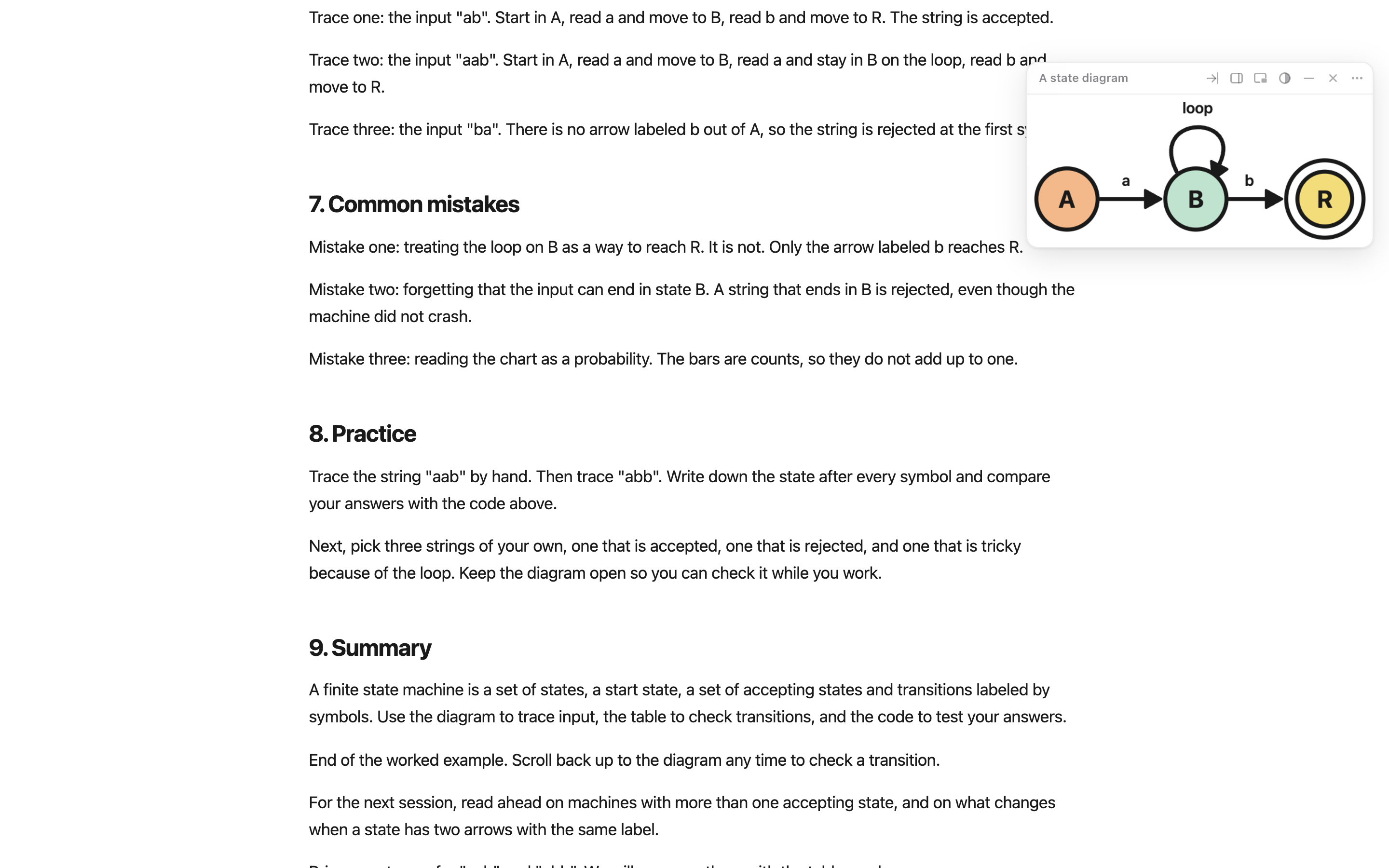
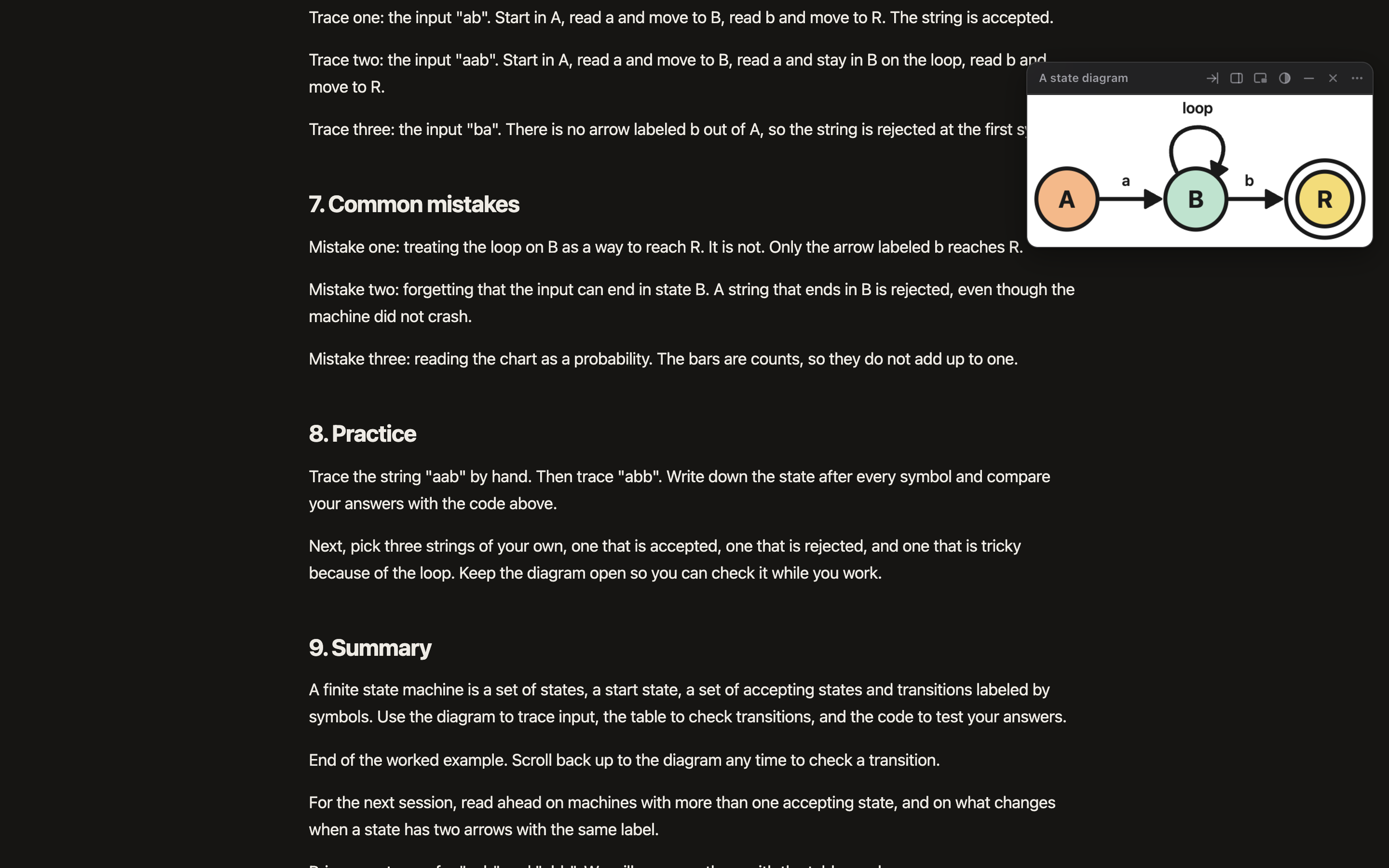
- Click Pin. The diagram appears as a card near the top right of the window.
- Scroll. The card stays where it is.
Pinning#
There are five ways to pin. Each one makes a pin card.
Hover and click Pin#
Move the pointer over a diagram, image, equation, table or code block and click the Pin button at its top right corner.
The button shows on parts at least 80 pixels wide and 60 tall. Equations can be shorter. Very small parts, such as icons, and parts that fill the whole window do not get one. Use Pick element for those.
Select text#
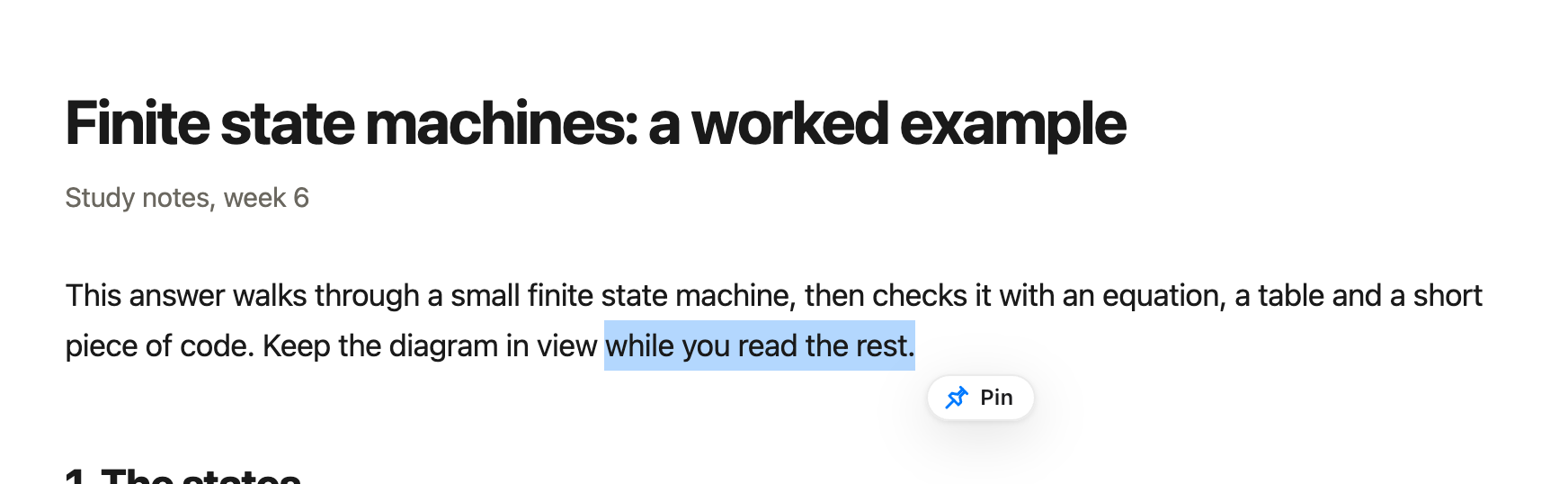
Select a sentence or a paragraph, then click the Pin button that appears next to the selection. The pin keeps a picture of the selection, so math keeps its look, and the plain text.

Capture area#
- Press Alt Shift S, or choose Capture area from the toolbar button.
- Drag a rectangle over the part of the page you want.
The area is pinned as an image. Esc cancels.
Pick element#
- Press Alt Shift E, or choose Pick element from the toolbar button.
- Move the pointer. Pinner outlines the part under it.
- Click to pin the outlined part.
From the keyboard: ↑ picks the larger block around the outline, ↓ goes back, Enter pins and Esc cancels.
Right-click#
Right-click an image and choose Pin image, or right-click a selection and choose Pin selection. Right-click an empty part of the page for Capture area and Pick element.
Pin cards#
Move, resize and zoom#
- Move: drag the header.
- Resize: drag the bottom right corner.
- Zoom: scroll or pinch over the picture. Drag to pan when zoomed in. Double click to fit.
Header buttons#
| Button | What it does |
|---|---|
| Show in page | Scrolls the page back to where the pin came from and flashes it. |
| Dock right | Moves the pin into the dock on the right. Click again to float it. |
| Float above other apps | Pops the pin out into a small window that stays on top. |
| Opacity | Fades the pin so the page shows through. |
| Minimize | Shrinks the pin to a small chip. Click the chip to bring it back. |
| Close | Hides the pin from the page. It stays in the Library. |
| More | Opens the More menu. |
On a narrow pin, Show in page, Float above other apps and Opacity move into the More menu.
More menu#
| Item | What it does |
|---|---|
| Open in viewer | Shows the pin at full size in its own tab, with markup tools. |
| Copy image | Copies the picture. |
| Copy LaTeX, Copy code, Copy text | Copies what the pin holds besides its picture. Each shows only when the pin has it. |
| Download | Saves the picture as a file. |
| Update from page | Captures the source again and replaces the picture. |
| Follow | Turns Follow on or off. |
| Keep on all sites | Shows the pin on every site, not only the page it came from. |
| Delete | Removes the pin from the page and the Library. |
Follow#
A pin with Follow on hides while its source is on screen and comes back when the source scrolls away. Turn it on in the More menu, or press F on a focused pin.
Follow works on the page the pin came from. To start every new pin with Follow on, turn on Follow by default in Settings.
Pop out#
Float above other apps opens the pin in Chrome’s Picture in Picture window, which stays above every app. Where Chrome does not support that, it opens a small Chrome window instead.
Equations, code and text#
A pin is a picture, so it looks exactly as it did on the page. Pinner also saves what it can copy later:
- Equations: on pages that use KaTeX, MathJax or MathML, the TeX source. Use Copy LaTeX.
- Code blocks: the code. Use Copy code.
- Text: the plain text. Use Copy text.
Coming back to a page#
Pins are saved on your device. When you return to a page, its pins come back in the same place and size. A pin with Keep on all sites shows on every site.
To hide or show every pin on the current page, press Alt Shift P.
Dock#
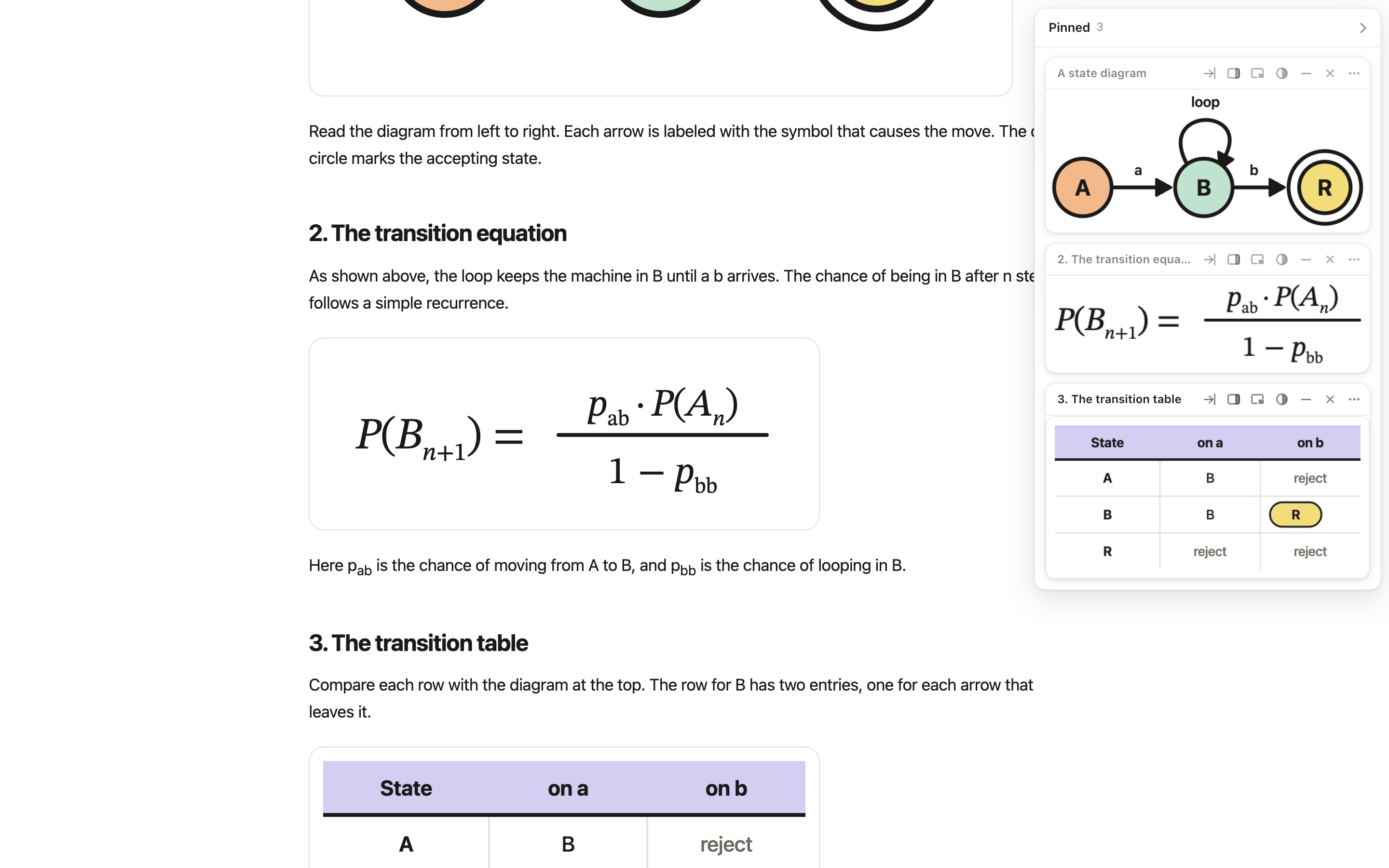
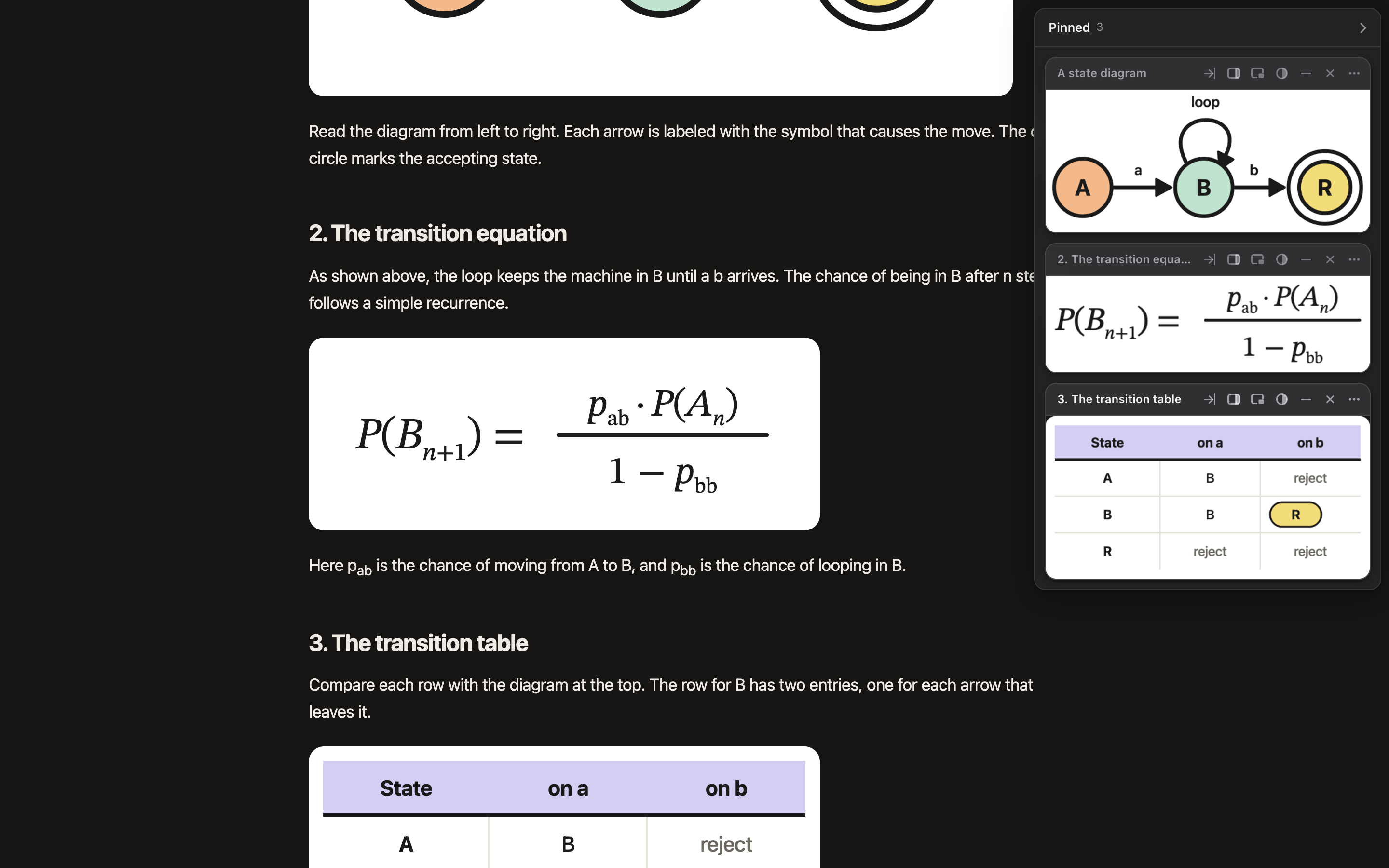
Docked pins stack in a rail on the right edge of the window. The rail floats above the page, so the page does not move.
- Dock a pin: click Dock right in its header, or press D on a focused pin.
- Resize the rail: drag its left edge.
- Collapse the rail: click the arrow in its header. A thin tab stays on the edge. Click the tab to open the rail again.
To dock every new pin, set New pins appear to docked in Settings.
Library#
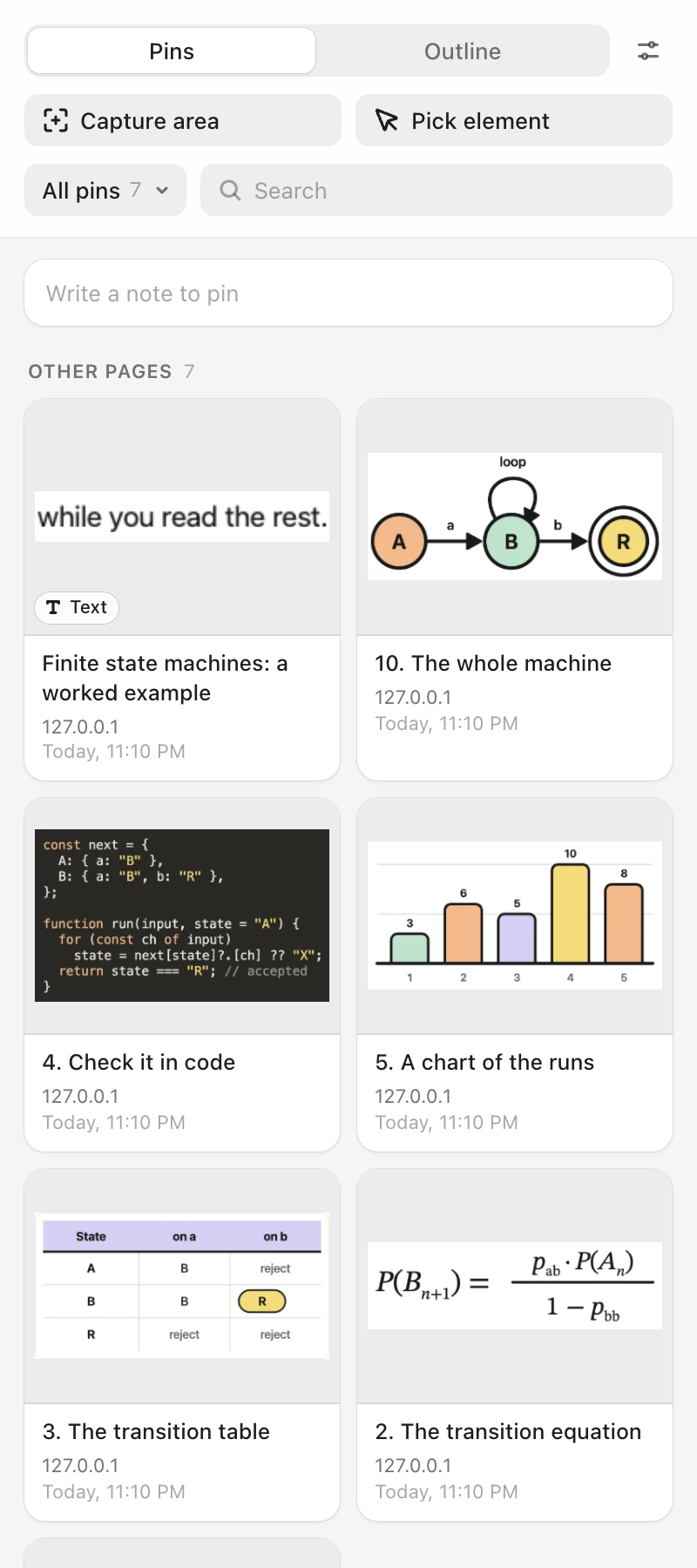
The Library is in Chrome’s side panel. Open it with Alt Shift L, or choose Open library from the toolbar button.
Pins#
Pins are grouped as This page, All sites and Other pages. Type in Search to filter them. Capture area and Pick element are at the top.
Each pin has a menu:
- Show on page, or Open source page when the pin is from another page
- Open in viewer and Pop out
- Rename, Copy, Download and Follow
- Move to board and Keep on all sites
- Delete
Boards#
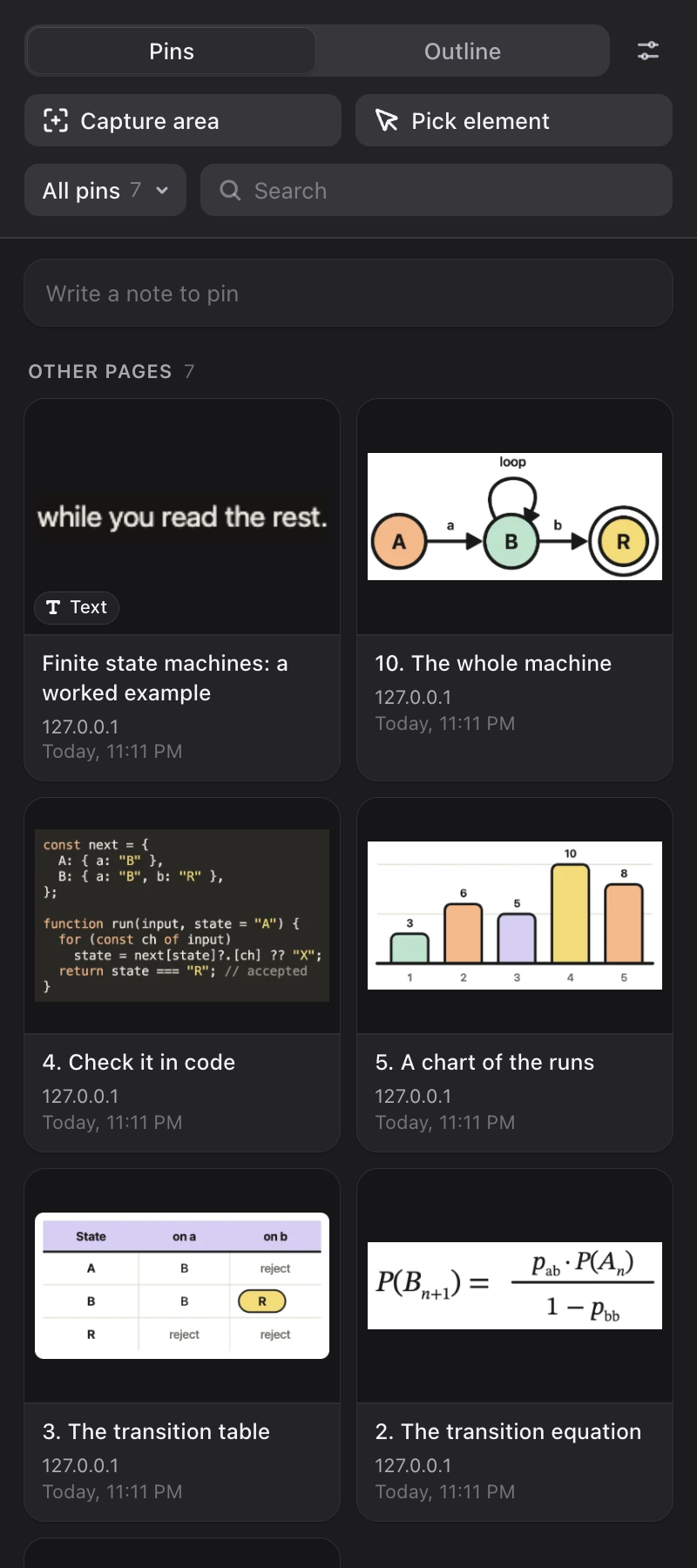
A board is a named group of pins, for example one per topic or course. Click the board button next to Search (it reads All pins at first) to choose a board, make a new one or manage them. While a board is chosen, new pins go into it.
The same menu exports the board, or all pins, as Markdown or for Anki.
Notes#
Type in Write a note to pin and click Pin note. The note becomes a text card you can edit in place.
Outline#
The Outline tab lists the page’s headings, chat turns and figures. Click an entry to scroll to it, or pin it from the list. Only the parts of the page that are loaded are listed.
Viewer#
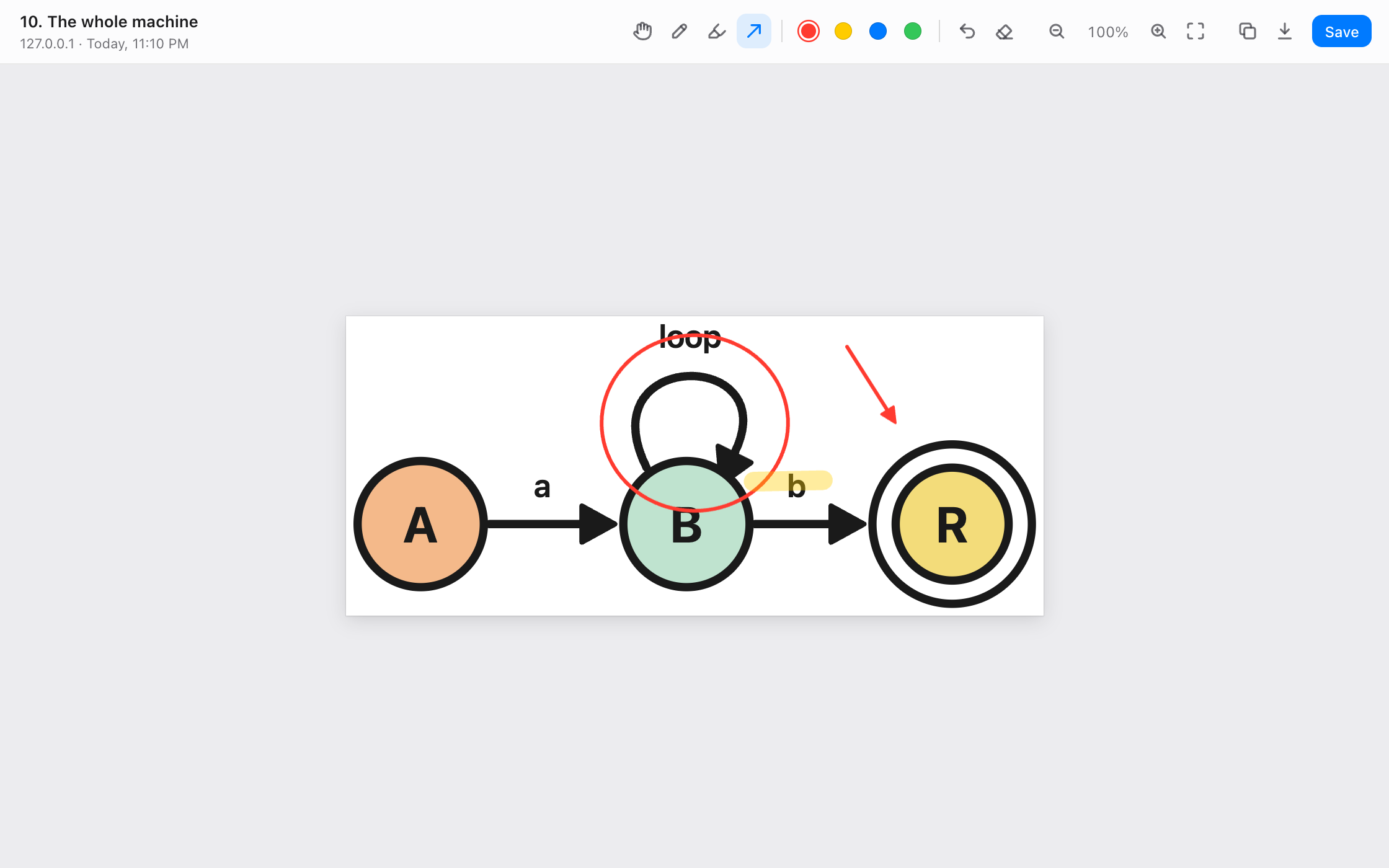
The viewer shows one pin at full size in its own tab. Open it from a pin’s More menu or from the Library.
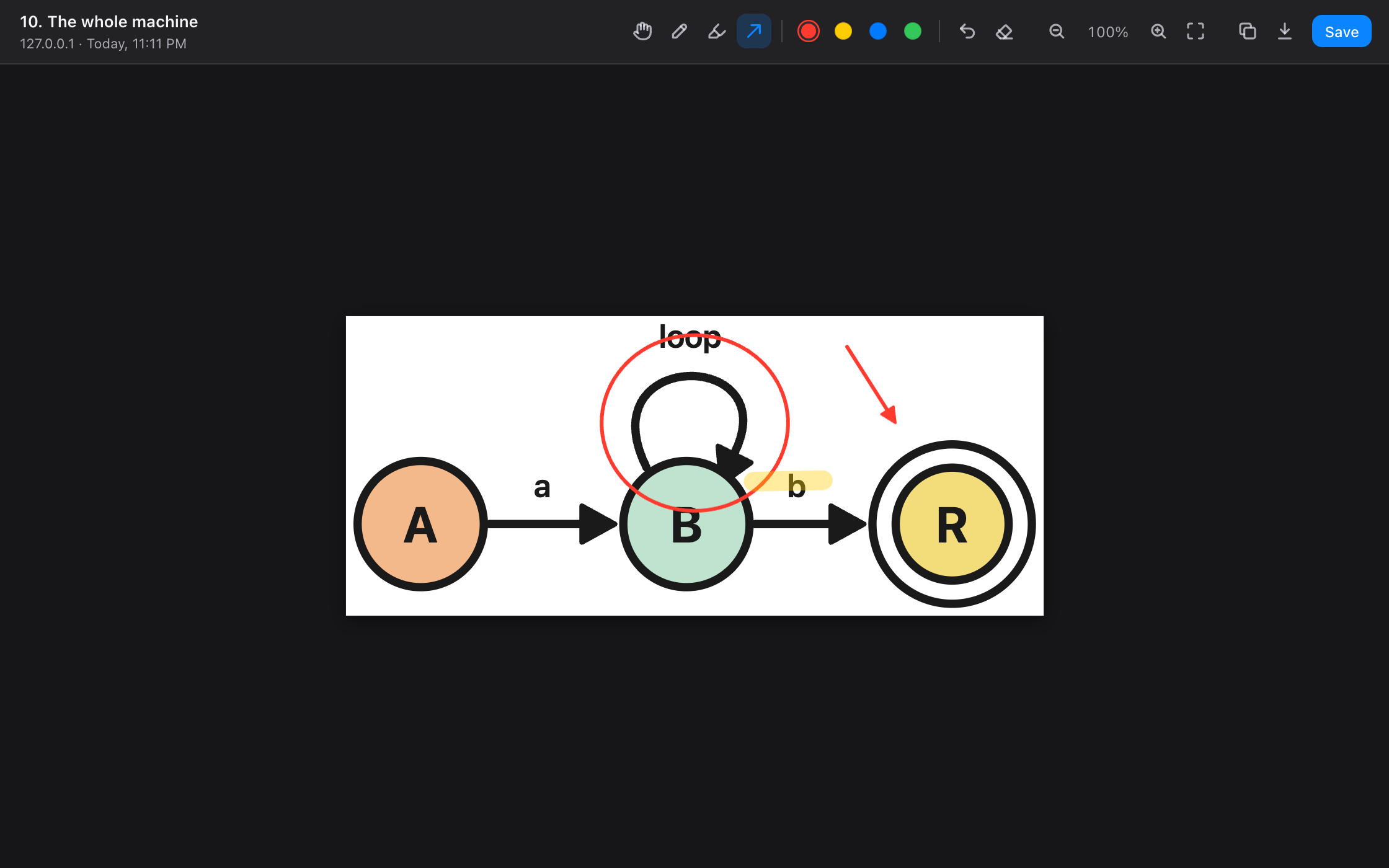
- Draw: pen, highlighter or arrow, in four colors.
- Fix: Undo removes the last stroke. Clear removes them all.
- Look closer: zoom in, zoom out, fit, and drag to pan.
- Keep it: Save writes the markup into the pin. Copy and Download give you the picture.
Settings#
Open Settings from the toolbar button, or from the Library.
Options#
| Setting | What it does |
|---|---|
| New pins appear | Floating on the page, or docked on the right. |
| Follow by default | New pins start with Follow on. |
| Pin button on hover | Shows or hides the Pin button on diagrams, equations, tables and code. |
| Pin button on selected text | Shows or hides the Pin button next to text you select. |
| Default opacity | How see-through new pins are. |
| Turned off on these sites | Sites where Pinner stays out of the way. |
Back up and export#
| Action | What you get |
|---|---|
| Backup | Every pin and its image in one JSON file that you can import again. |
| Markdown | A zip with a Markdown file and the images, for a notes app. |
| Anki | Flashcards as tab separated text: title and source on the front, text, LaTeX or code on the back. Images are not included. |
| Import | Adds the pins from a Pinner backup. Existing pins are kept. |
| Delete all pins | Removes every pin from this device. |
Removing Pinner removes your pins. Chrome deletes an extension’s storage with it. Make a backup first.
Shortcuts#
On a Mac, Alt is the Option key.
Anywhere in Chrome#
| Action | Keys |
|---|---|
| Capture area | Alt Shift S |
| Pick element | Alt Shift E |
| Show or hide pins on this page | Alt Shift P |
| Open the Library | Alt Shift L |
| Cancel capture or pick | Esc |
Change the first four at chrome://extensions/shortcuts.
On a focused pin#
Press Tab until the pin has the focus ring.
| Action | Keys |
|---|---|
| Follow its source | F |
| Dock or undock | D |
| Move | ← ↑ ↓ → |
| Move in bigger steps | Shift ← ↑ ↓ → |
| Resize | Alt ← ↑ ↓ → |
| Zoom in | + |
| Zoom out | − |
| Fit | 0 |
| Hide from the page | Delete |
In the viewer#
Use Cmd on a Mac and Ctrl elsewhere.
| Action | Keys |
|---|---|
| Pen | P |
| Highlighter | H |
| Arrow | A |
| Stop drawing | V or Esc |
| Pan while drawing | Hold Space and drag |
| Zoom in, zoom out | + − |
| Fit, actual size | 0 1 |
| Undo | Cmd Z |
| Save markup to the pin | Cmd S |
| Copy image | Cmd C |
Troubleshooting#
Chrome does not let extensions run on chrome:// pages, the Chrome Web Store or its PDF viewer. Pinner cannot pin there.
A tab that was open before you installed Pinner gets it the first time you use the toolbar button or a shortcut there. Reloading the tab works too.
For a Pin button that does not appear, a shortcut that does nothing and other fixes, see Support.